Visibility beats willpower: The real secret to staying organised
Okay, thank you for continuing the journey with me. Let’s get back to actionable content you can implement right now to improve your efficiency and follow‑up.
The next step in this process is simple but powerful: make your task list visible. There’s no point creating tasks if they disappear into an app you never open. Your task list should guide your day — not sit in the background hoping you remember it exists.
There are easy ways to keep your tasks front and centre, and we’ll walk through the two tools most people use in their professional and personal lives: Outlook and Gmail. If you use something else, don’t worry — the principle is the same. The goal is to get your tasks out of your head so you can free up mental space for higher‑value work. Let technology do the grunt work.
In Outlook, you can open your calendar in a separate window and keep your tasks right beside it. This creates a clean, two‑pane view where your priorities sit next to your schedule — exactly where they belong.
In Gmail, Google Tasks lives in the right‑hand sidebar. It’s visible every time you check your email, which makes it incredibly easy to capture follow‑ups, reminders, and quick actions without breaking your flow.
If you rely on your phone, you’ll need the Outlook, Gmail, and To Do/Tasks apps installed — and a simple routine to check them daily. The system only works if you look at it.
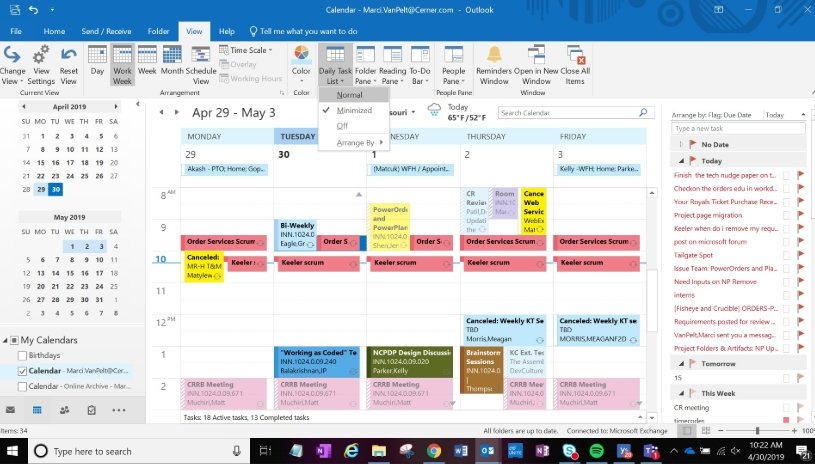
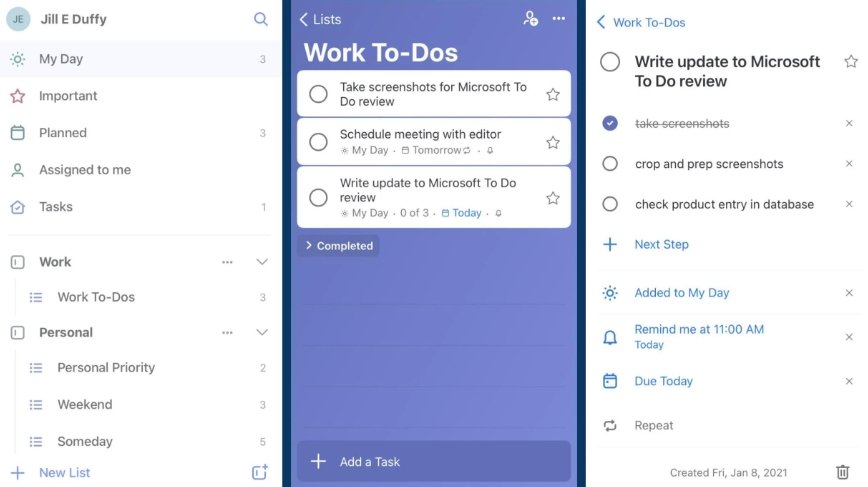
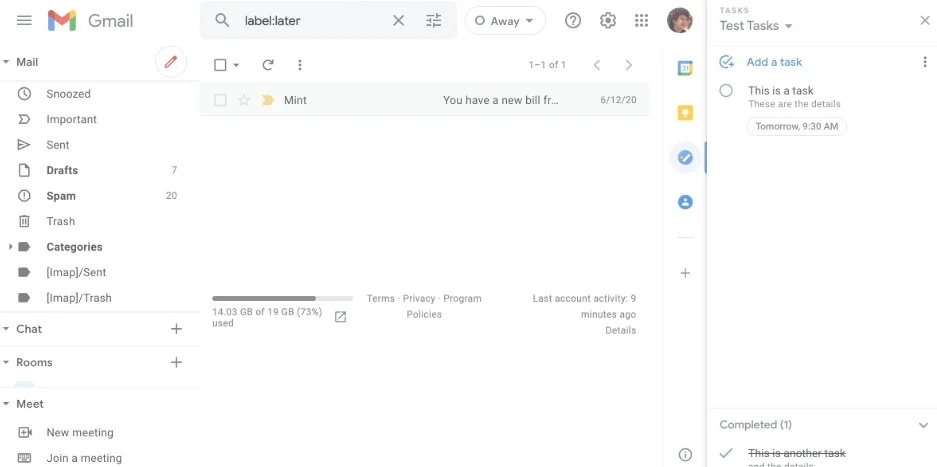
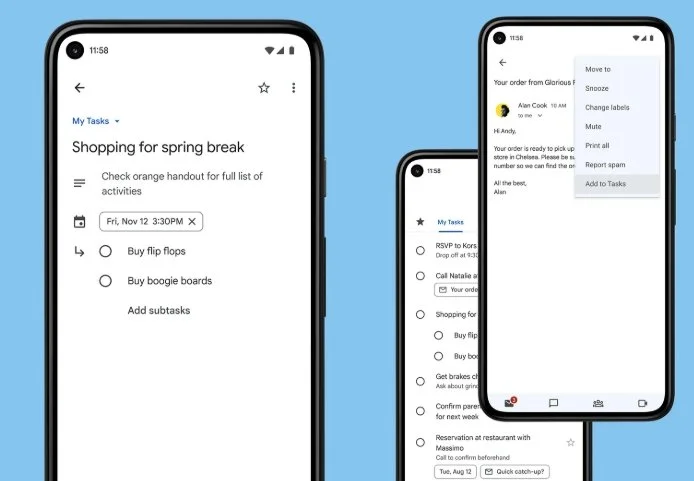
Examples of an Outlook calendar with Tasks on the right sidebar, Microsoft To Do app view, Gmail inbox with tasks on the right sidebar, and Google Tasks app view.
Here’s the mindset shift:
Your task list — not your inbox — should drive your daily activity.
Your inbox is important, and we’ll cover a strategy to manage it effectively, but it should never dictate your priorities. As a starting point, turn off email notifications. Every interruption pulls you out of deep work, and research shows it takes 10–15 minutes to fully re‑engage. You don’t want to lose momentum because of an email announcing a meeting three weeks from now.
If you’ve been following this blog in order, you’ll know we’ve already talked about TOFU — Take Ownership, Follow‑Up. When you delegate something or redirect it to the right person, you still own the follow‑up. These are perfect candidates for your task list.
And here’s the good news: you can create shortcuts that automatically turn emails into tasks with a due date you choose. No more mental tracking. No more “I’ll remember to check on that.” The system remembers for you.
As a rule of thumb, when you send an email that may require follow‑up, set a task for one week later. If you email someone on a Tuesday, create a task to follow up the next Tuesday. When that task pops up, you’ll instantly know what it refers to — and a week is more than enough time for most people to respond or take action.
Next Steps: Set Yourself Up in Under Two Minutes
If you want to put this into practice right now, here are a few ultra‑short videos that show exactly how to keep your tasks visible — without digging through menus or reading long tutorials. Each one is under two minutes, so you can get set up before you even finish your coffee.
There are longer videos that add a lot of value, so if these resonate, feel free to explore further on YouTube.
1. Outlook: Keep Your Tasks Next to Your Calendar
A 48‑second walkthrough showing how to display your tasks beside your calendar and drag them into your day.
2. Outlook: Create Tasks Directly From Emails
A 48‑second official Microsoft clip showing how to turn emails into tasks instantly — no copy/paste, no clutter.
3. Outlook: Use Tasks as a Simple To‑Do List
A 1:54 quick guide to creating, updating, and completing tasks without overcomplicating your workflow.
4. Gmail: Keep Google Tasks Visible in the Sidebar
A 1:07 Google Workspace video showing how to drag emails into Tasks and keep your list visible on the right-hand side of Gmail.
Why These Matter
These tiny habits — keeping your tasks visible and creating them with one click — are what make a task system actually stick. Visibility beats willpower every time. When your tasks sit right next to your calendar, you naturally check them, update them, and plan your day around them. No extra discipline required.